


iBooker.onlineiBooker.online

Square Appointments + Shopify: Embed Online Booking on Your Store

8 min read · Updated June 8, 2026

Shopify logo
Square Appointments + Shopify

You sell on Shopify but take appointments in Square? Don't send people to a separate Square link — put booking on your store and actually measure which ads bring appointments.

What's wrong with Square's usual booking link?

Square gives you a booking page — and that's great for taking appointments. But it's not built for marketing. You can't add Google Analytics or a Facebook Pixel there. You can't see which ad or Instagram post brought the customer. And when they finally book, Google Ads and Meta don't get a “conversion” — so your ads keep guessing instead of learning what works.

  • No place to paste your analytics or pixel code.
  • Customer leaves your website — you lose track of where they came from.
  • A finished booking doesn't show up as a conversion in your ad accounts.
  • You can't retarget people who almost booked but dropped off.

On Shopify it's extra painful: the customer leaves your beautiful store, lands on a generic Square page, and your ads never learn that the click turned into money.

What iBooker.online does differently

We plug into your Square account and put a booking window on your own website. Same Square calendar behind the scenes — but now your marketing tools finally see the bookings:

  • Paste your Google Analytics and Meta Pixel IDs once — no developer needed.
  • See every step: customer picked a service, reached checkout, and finally booked.
  • When someone books, Google and Meta get a real “purchase” with the price of the service.
  • Booking still happens in Square — your calendar, staff, and payments stay exactly as they are.
  • We don't keep a copy of your customer list — Square stores the appointment.
  • The widget loads in the background and doesn't slow down your site.
  • Your colors, your logo vibe, your “Book now” button — it looks like your brand.
  • Try free for 7 days, then simple monthly pricing per booking page.

Three ways to add booking to your site

All three options connect to the same Square calendar and send the same tracking data. Pick whichever looks best on your site — you just copy a small piece of code from your iBooker.online dashboard.

1. Floating “Book now” button
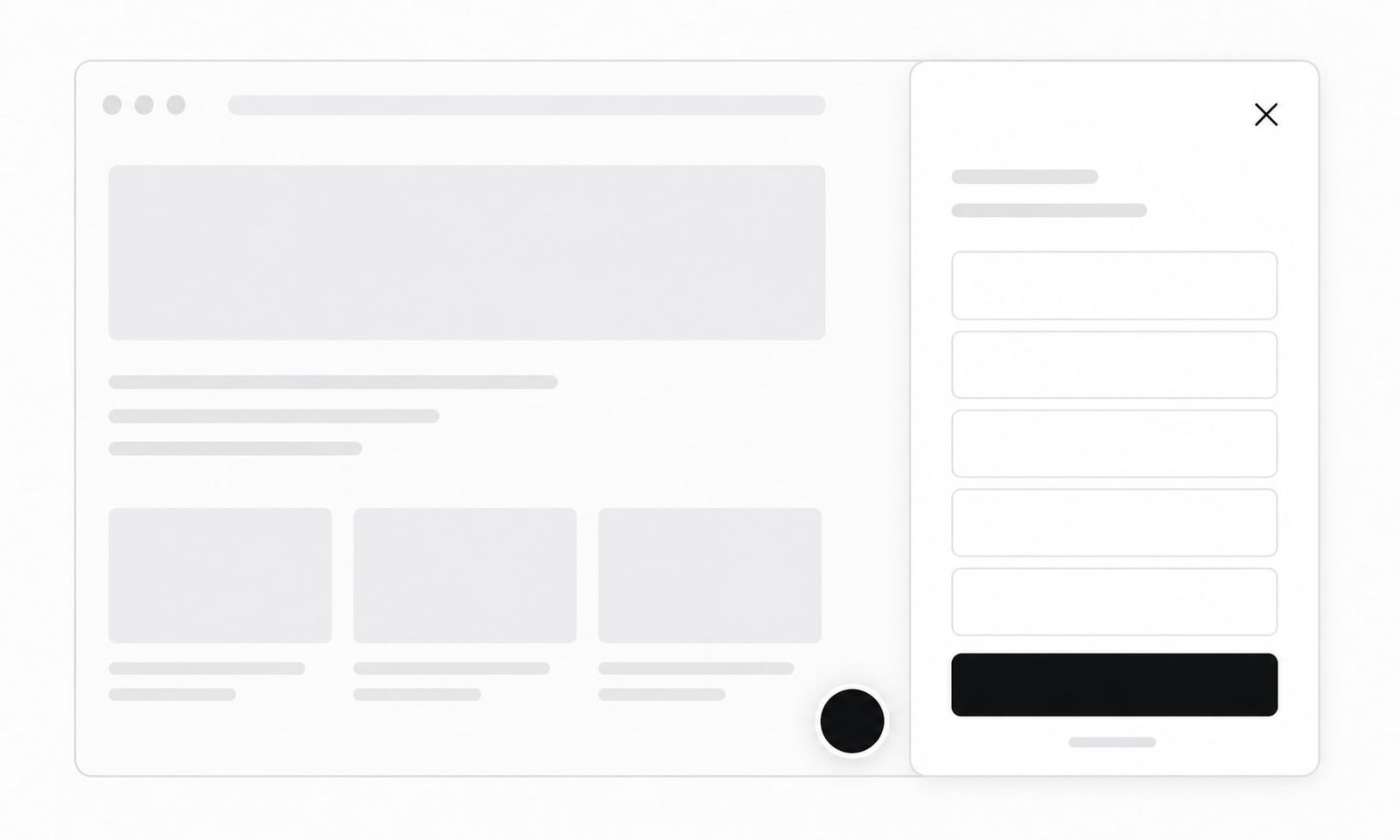
Floating Book now button with slide-out booking drawer
Floating button + drawer

A small “Book now” button sits in the corner. Customer clicks — booking panel slides in. Good if you don't want a whole extra page.

<script async src="https://ibooker.online/embed.js" data-ibooker="your-business"
  data-position="right" data-color="#18181b" data-offset="20" data-label="Book now"></script>

2. Booking right on the page
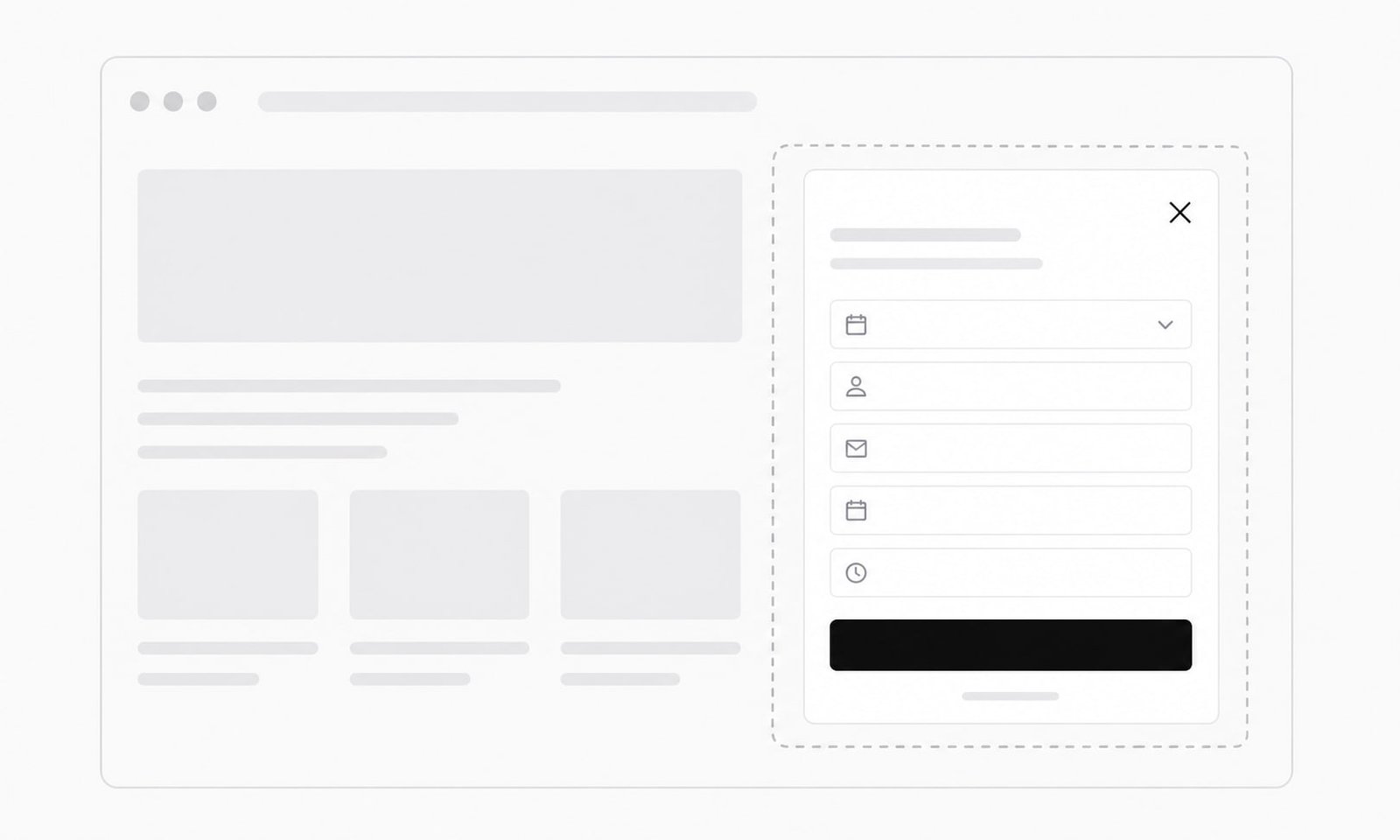
Booking widget embedded inline on a webpage
Inline embed

Make a page called “Book” and drop the booking form right on it. Great for links from Google Ads or email.

<iframe src="https://ibooker.online/your-business?embed=1" title="Book an appointment"
  style="width:100%;height:720px;border:0;border-radius:16px"></iframe>

3. Your own button
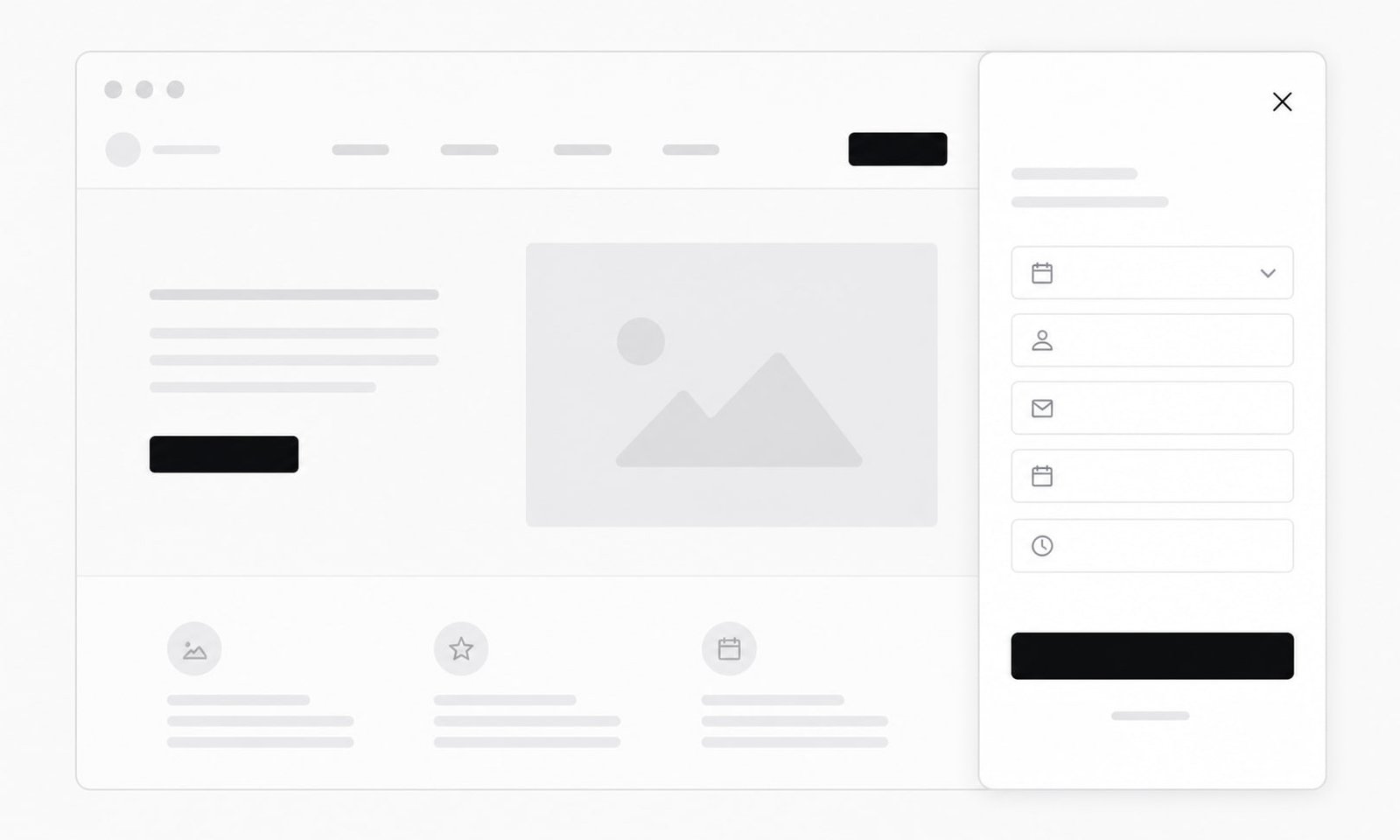
Custom website button opening the booking widget
Your own button

Keep your own menu button — just connect it to open our booking window.

<!-- 1) Load the widget once — no floating button shown -->
<script async src="https://ibooker.online/embed.js" data-ibooker="your-business" data-mode="trigger"></script>

<!-- 2) Open from YOUR button or link -->
<a href="#ibooker">Book now</a>
<button data-ibooker-open>Book an appointment</button>

Where to paste the code in Shopify

  1. 1Online Store → Themes → Edit code.
  2. 2For the floating button: open theme.liquid, paste the script before the closing </body> tag.
  3. 3For one page only: Pages → your Book page → HTML → paste the iframe code.
  4. 4In the code, replace your-business with your project name from iBooker.online (Embed tab).
  5. 5Connect Square, add your Analytics IDs, publish, and do one test booking.

How to turn on tracking

In iBooker.online open your project → Analytics. Paste your Google Analytics ID (starts with G-) and your Meta Pixel number. Save. From now on every booking sends a “purchase” event with the service name and price — so you can see results in Google and optimize Facebook/Instagram ads for real appointments, not just clicks.

Tip: in Google Analytics mark “purchase” as a key event, then link Google Analytics to Google Ads. In Meta, optimize your campaign for the Purchase event.
This is for Square Appointments (services), not the Shopify + Square plugin for physical products.

Ready to track your Square bookings?

Start your 7-day free trial

More documentation

Square Appointments + Tilda: Booking on Your Landing Page

Square won't install your pixel. Put Square Appointments on a Tilda landing page with iBooker.online — see which ads actually book appointments.

Square Appointments + Framer: Embed Booking with Analytics

Square's booking link blocks your pixels. Add Square Appointments to Framer with iBooker.online — measure every booking from your ads.

Square Appointments + Squarespace: Embed Booking + Tracking

Square's widget won't run Google or Meta pixels. Put Square Appointments on Squarespace with iBooker.online and see which marketing brings bookings.

Square Appointments + Wix: Booking with Conversion Tracking

Square can't track your ads. Add Square Appointments to Wix with iBooker.online — booking on your site, conversions in Google and Meta.

Square Appointments + Webflow: Embed Booking on Your Site

Square's booking page has no analytics. Embed Square Appointments in Webflow with iBooker.online — track ads, see conversions, three simple embed options.

Square Appointments + WordPress: Add a Booking Widget to Your Site

Square won't run your pixels on their booking page. Add Square booking to WordPress with iBooker.online — track every appointment in Google Analytics and Meta.

How to share your Square booking page link (and link to a single service)

Get a clean, shareable booking link for your Square Appointments page — post it on Instagram, Google Business Profile and email — plus deep links that open one specific service directly.

Why your Square booking page isn't tracking conversions (and how to fix it)

Square Appointments bookings often never reach GA4, Google Ads or Meta. Here's why native Square booking loses the conversion signal — and the simple fix that captures every booking.

How to add the Meta (Facebook) Pixel to your Square booking page

Add your Meta Pixel to your Square Appointments booking page in one paste and automatically fire AddToCart, InitiateCheckout and Purchase events for Facebook & Instagram ad optimization.

How to send Square booking conversions to Google Ads

Turn Square Appointments bookings into Google Ads conversions so your campaigns optimize for real appointments and value-based bidding — using the GA4 purchase event or a Google Tag Manager trigger.

How to track Square Appointments bookings in Google Analytics 4 (GA4)

Step-by-step: connect your Square Appointments booking flow to GA4 so every appointment shows up as a purchase conversion — with service, price, currency and booking ID — no code or tag manager required.

Which events your booking page tracks

Every conversion event the iBooker.online booking page fires — select_location, select_service, select_staff, begin_checkout and purchase — with the rich parameters sent to GA4, Meta Pixel and the dataLayer for value-based bidding and audiences.

How conversion tracking works in iBooker.online

How a Square Appointments booking becomes an accurate conversion event in GA4, Google Ads and the Meta Conversion API — server-side, in real time, with no customer data stored.

How iBooker.online connects to Square (OAuth 2.0)

A plain-English explanation of how iBooker.online securely connects to your Square account using Square's official OAuth 2.0 flow with PKCE — what we access, what we never see, and how to revoke access anytime.