


Salons, studios, and coaches love Squarespace for the look — and Square for appointments. iBooker.online combines both: pretty site + tracked booking, without sending clients to a plain Square URL.
What's wrong with Square's usual booking link?
Square gives you a booking page — and that's great for taking appointments. But it's not built for marketing. You can't add Google Analytics or a Facebook Pixel there. You can't see which ad or Instagram post brought the customer. And when they finally book, Google Ads and Meta don't get a “conversion” — so your ads keep guessing instead of learning what works.
- No place to paste your analytics or pixel code.
- Customer leaves your website — you lose track of where they came from.
- A finished booking doesn't show up as a conversion in your ad accounts.
- You can't retarget people who almost booked but dropped off.
Squarespace has its own scheduling product, but if you already use Square Appointments for your team and payments, you need a booking embed that actually talks to your ad pixels.
What iBooker.online does differently
We plug into your Square account and put a booking window on your own website. Same Square calendar behind the scenes — but now your marketing tools finally see the bookings:
- Paste your Google Analytics and Meta Pixel IDs once — no developer needed.
- See every step: customer picked a service, reached checkout, and finally booked.
- When someone books, Google and Meta get a real “purchase” with the price of the service.
- Booking still happens in Square — your calendar, staff, and payments stay exactly as they are.
- We don't keep a copy of your customer list — Square stores the appointment.
- The widget loads in the background and doesn't slow down your site.
- Your colors, your logo vibe, your “Book now” button — it looks like your brand.
- Try free for 7 days, then simple monthly pricing per booking page.
Three ways to add booking to your site
All three options connect to the same Square calendar and send the same tracking data. Pick whichever looks best on your site — you just copy a small piece of code from your iBooker.online dashboard.
1. Floating “Book now” button
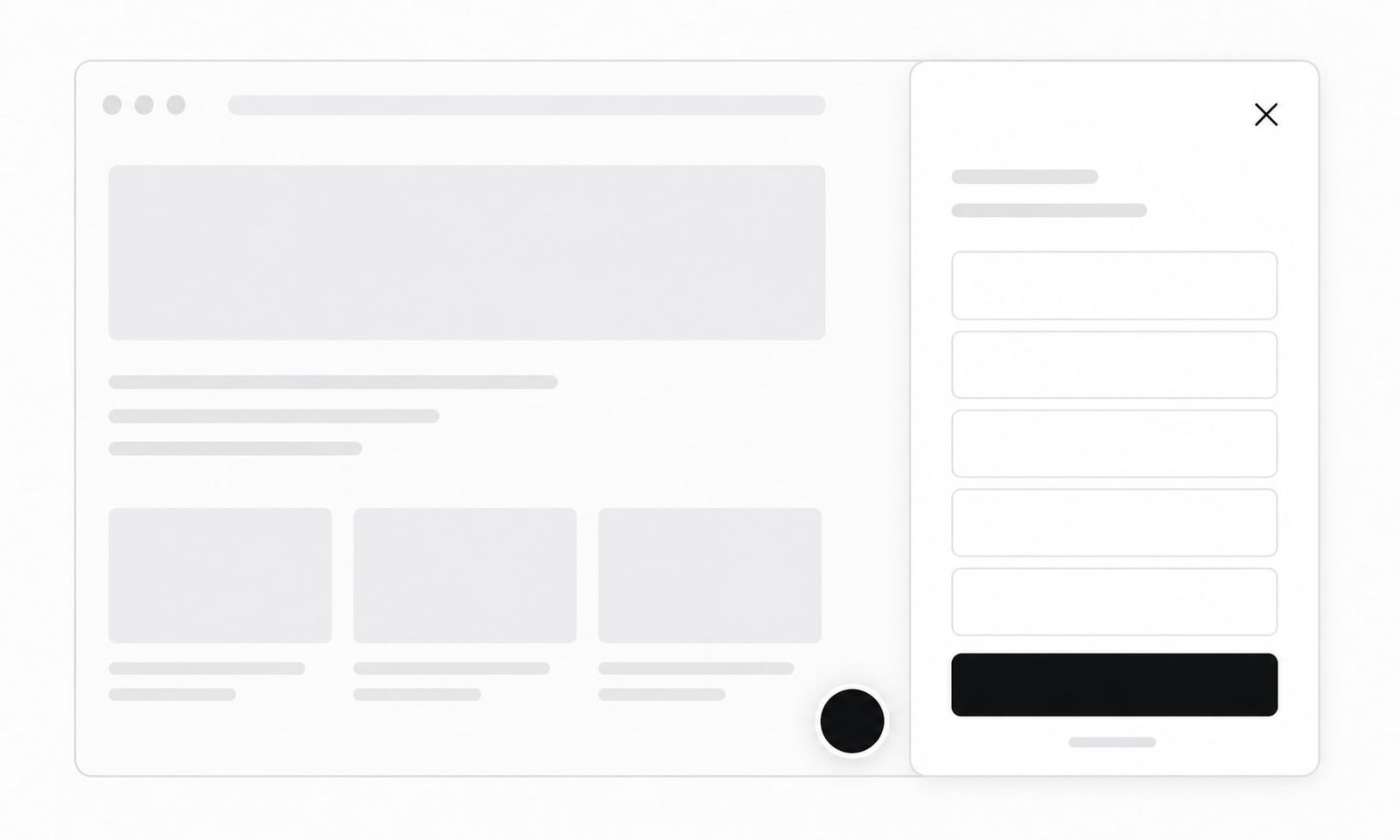
Settings → Advanced → Code Injection → Footer.
<script async src="https://ibooker.online/embed.js" data-ibooker="your-business"
  data-position="right" data-color="#18181b" data-offset="20" data-label="Book now"></script>
2. Booking right on the page
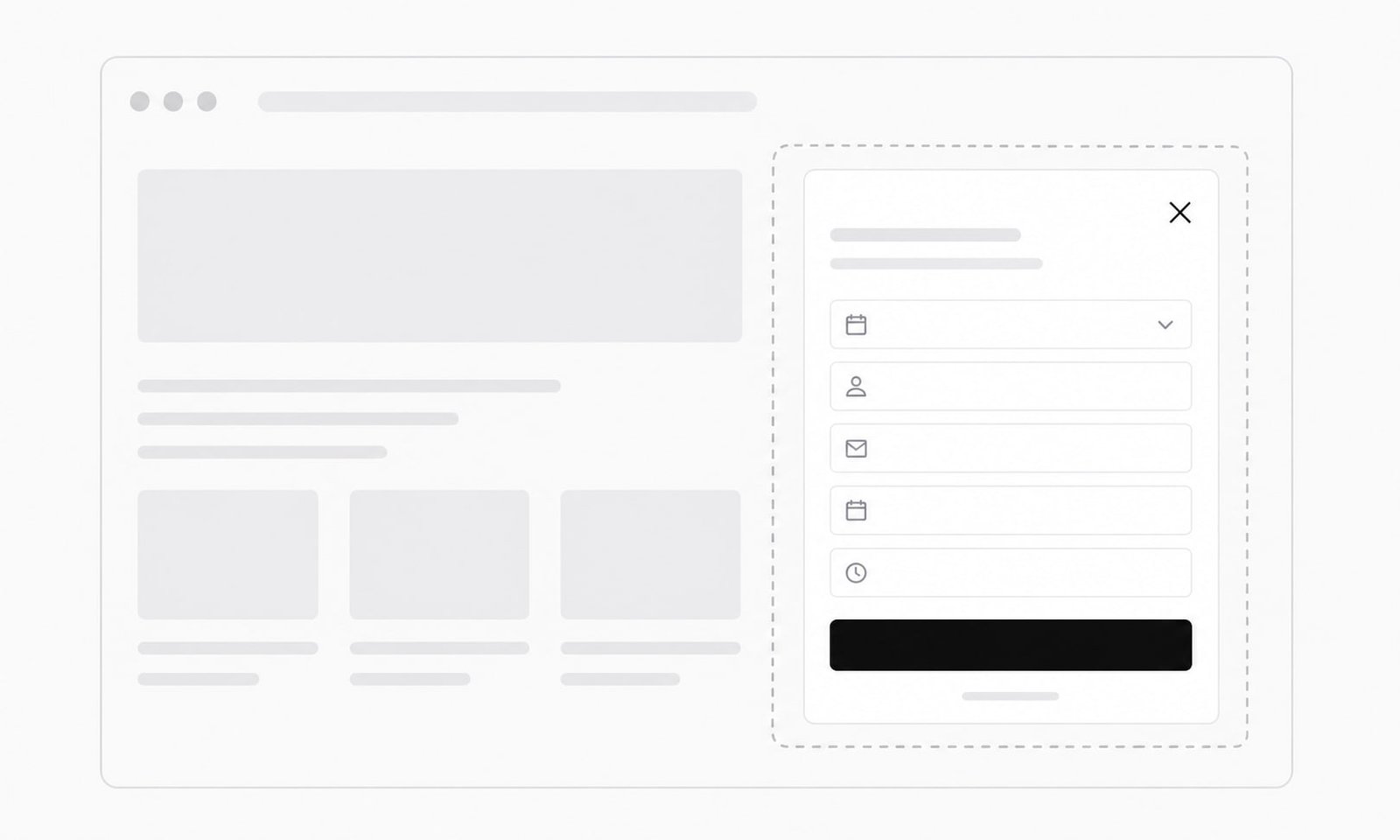
Add a Code block on a Book page, paste the iframe.
<iframe src="https://ibooker.online/your-business?embed=1" title="Book an appointment"
  style="width:100%;height:720px;border:0;border-radius:16px"></iframe>
3. Your own button
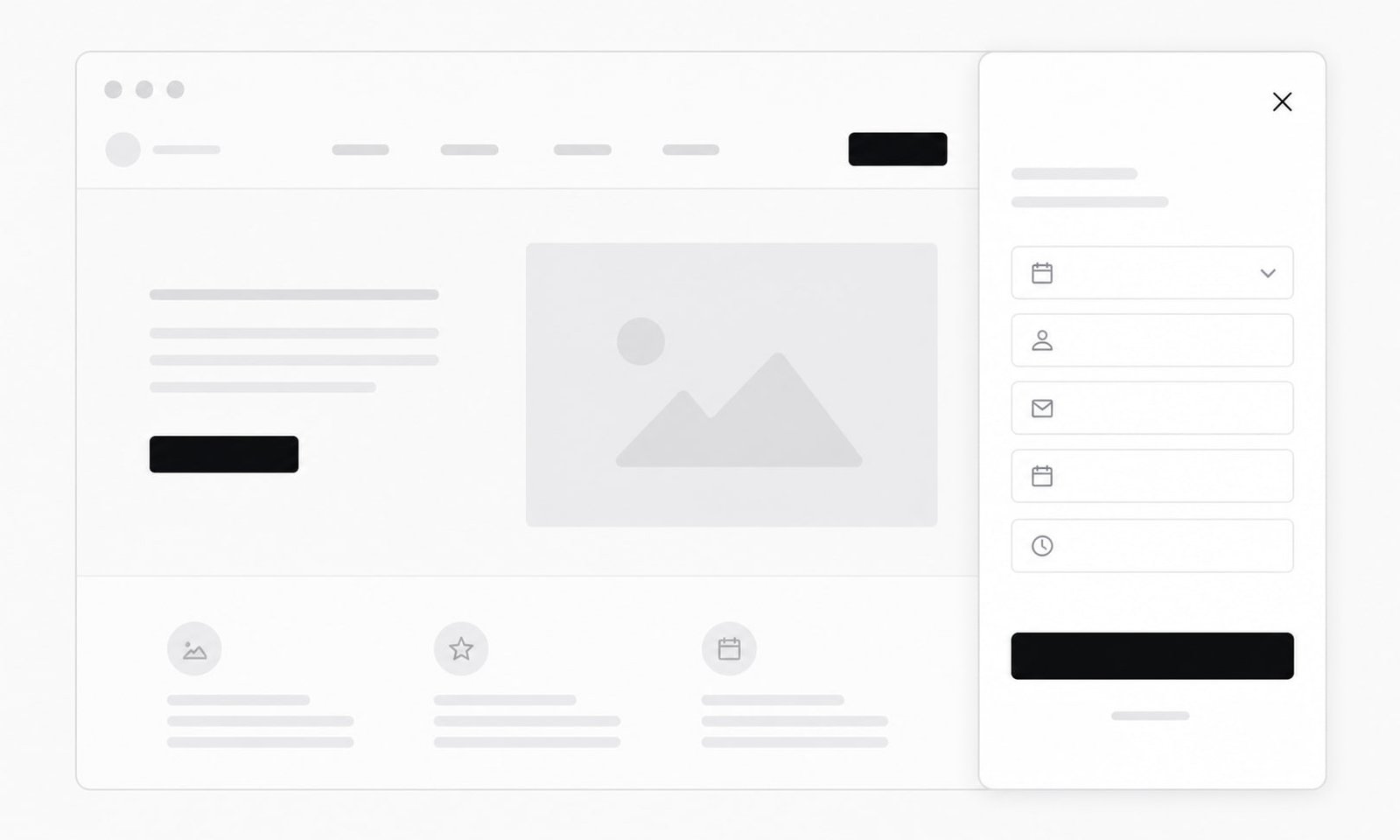
Footer code + set your Squarespace button link to #ibooker.
<!-- 1) Load the widget once — no floating button shown -->
<script async src="https://ibooker.online/embed.js" data-ibooker="your-business" data-mode="trigger"></script>

<!-- 2) Open from YOUR button or link -->
<a href="#ibooker">Book now</a>
<button data-ibooker-open>Book an appointment</button>
Setup on Squarespace
- 1Connect Square in iBooker.online, copy code from Embed tab.
- 2Paste in Code Injection (footer) or Code block (iframe).
- 3Add Book page to your menu.
- 4Paste Analytics IDs and test a booking.
How to turn on tracking
In iBooker.online open your project → Analytics. Paste your Google Analytics ID (starts with G-) and your Meta Pixel number. Save. From now on every booking sends a “purchase” event with the service name and price — so you can see results in Google and optimize Facebook/Instagram ads for real appointments, not just clicks.